Pros and Cons of WebP Images: 2026 Update

WebP is an image format created by Google, built on the VP8 video codec and designed for the web to replace JPEG and PNG with better compression. In 2026, it’s no longer the new kid on the block. Browser support is effectively universal. Two newer formats have emerged as competitors: AVIF, now widely supported, and JPEG XL, still finding its footing. And Google keeps nudging site owners toward next-gen formats through PageSpeed Insights. So, where does WebP actually stand? Here’s a clear-eyed look.

TL;DR

  • AVIF is now a serious alternative to WebP. It compresses better, retains more visual fidelity, and has broad browser support across Chrome, Firefox, Safari, and Edge. For image-heavy sites, it’s worth considering alongside WebP.
  • WebP browser support is effectively universal. Every major browser supports it. The <picture> fallback is now optional rather than something you need to plan around.
  • The format decision is more nuanced than it used to be. WebP is still the right default for most sites. But for high-performance use cases, the emergence of AVIF and JXL means the optimal choice now requires a more nuanced, case-by-case evaluation.
  • Tooling has caught up. WordPress, Shopify, and most CDNs now automatically handle WebP. For many sites, switching is less a technical challenge and more a case of turning the right setting on.

What is WebP?

WebP is an image format created by Google in 2010, designed specifically for web use. It supports both lossy and lossless compression, transparency (via an 8-bit alpha channel), and animation. Think of it as one format doing the job of JPEG, PNG, and GIF combined, usually at a smaller file size. For anyone figuring out how to optimize images for web, it’s the most practical starting point.

The pros of WebP

Smaller file sizes

This is WebP’s main selling point, and it holds up. According to Google’s WebP compression study, WebP lossy images are 25–34% smaller than equivalent JPEGs, and WebP lossless images are around 26% smaller than PNGs at comparable quality. For a content-heavy website, that adds up quickly across a full image library.

Tinify compresses WebP files using the same smart lossy compression it applies to all major formats. This process can shrink WebP file sizes by up to 80% while preserving the original visual quality. As an image compressor, Tinify supports JPEG, PNG, animated PNG (APNG), WebP, AVIF, and JPEG XL (JXL): you can convert JPEG to WebP, convert PNG to WebP, or simply compress WebP images, all in the browser.

Universal browser support

The compatibility concerns that plagued early WebP adoption are effectively gone. In 2026, every major browser supports WebP: Chrome, Firefox, Safari, Edge, and Opera. Internet Explorer is the sole holdout, and its global usage share is negligible. You no longer need a <picture> fallback just for WebP, though it’s still good practice if you want to be thorough.

One format for multiple use cases

WebP handles transparency like PNG and animation like GIF, which means you can standardize on a single format across most of your image library. Fewer format decisions, simpler workflows.

Both lossy and lossless compression in one format

Most formats are one or the other. JPEG is lossy only. PNG is lossless only. WebP supports both lossy and lossless compression in a single format, which means you can use it for photographs (where some quality loss is acceptable) and for graphics, logos, or images with text (where preserving every pixel matters). You don’t have to switch formats based on image type, because WebP handles both.

Better Core Web Vitals scores

Smaller images mean faster Largest Contentful Paint (LCP), one of Google’s key ranking signals. If you’re currently serving original camera JPEGs or unoptimized PNGs, switching to compressed WebP is one of the most direct ways to improve your PageSpeed score. Google’s PageSpeed Insights flags JPEG and PNG images as candidates for conversion to WebP or AVIF. If you’re wondering how to optimize photos for website performance, that’s the right place to start. For more on the relationship between image size and site speed, see our guide on how to resize images for a faster website.

Broad tooling support

WebP is supported by most image editing software, CMSs, e-commerce platforms, and CDNs. WordPress compresses and serves WebP natively. Shopify serves WebP automatically to supported browsers. Squarespace converts all uploaded images to WebP by default. The TinyPNG WordPress plugin made by Tinify compresses WebP, AVIF, JPEG, and PNG images automatically on upload.

The cons of WebP

AVIF and JPEG XL compress better

WebP’s biggest limitation in 2026 is that newer formats do the same job more efficiently. AVIF (the AV1 Image File Format, released in 2019) consistently produces smaller files than WebP at the same visual quality, with the advantage most noticeable on photographs and high-resolution images. Browser coverage is now broad enough that serving AVIF with a WebP fallback is increasingly practical for performance-critical sites. JPEG XL is also worth watching: Chrome 145 restores native JXL support, and it offers compression competitive with AVIF alongside some useful features like lossless transcoding from existing JPEGs.

Compression artifacts and dimension constraints

Pushing WebP compression too hard can introduce visible artifacts, especially in images with fine textures or intricate details. Tinify’s image optimizer analyzes each image individually to find the right balance automatically, so you don’t have to tune compression settings manually.

WebP also has a hard dimension cap: images cannot exceed 16,383 pixels in either width or height. For most web use cases, this isn’t an issue, but it’s worth knowing if you work with very large source images.

Not ideal outside the web

WebP is built for web delivery. It’s less suited for print workflows, professional publishing, or offline applications. Most print-on-demand platforms don’t accept WebP natively, and color accuracy can be an issue in print contexts. For those workflows, JPEG or PNG remains the standard.

Email clients don’t reliably support WebP

Web browsers have WebP covered, but email is a different story. Gmail only partially supports WebP, converting images to JPEG before delivery, which means transparent backgrounds break. Outlook on Windows doesn’t support WebP at all, showing a broken image instead. If your site sends transactional emails or newsletters that pull images from your media library, serving only WebP images can cause problems. The safest approach is to keep JPEG or PNG originals available as fallbacks for email contexts.

Figma doesn’t export WebP natively

Figma still doesn’t support WebP as a native export format. Designers working on web projects have to export as PNG or JPEG first and then convert separately, which adds friction to the workflow. 

Tip: The Tinify Figma plugin solves this directly. It exports and compresses to WebP (and AVIF) in one step, without leaving Figma.

Export Figma designs in WebP format using the Tinify Figma plugin.

Conversion at scale takes planning

For sites with large existing image libraries, converting everything to WebP takes time and the right tooling. Not all converters handle compression well, and some can produce WebP files that are larger than the original if settings aren’t dialed in. Using a purpose-built tool like Tinify’s image converter avoids this: it compresses and converts in one step, and its algorithm picks the right settings for each image.

Should you use WebP in 2026?

Yes, with one nuance.

WebP remains a solid, reliable choice for most websites. The file size savings over JPEG and PNG are real, browser support is effectively universal, and tooling is mature. If you haven’t made the switch yet, there’s no good reason to wait.

The nuance is that AVIF now competes seriously for the same role. The practical recommendation for 2026 looks like this:

  • For most sites (blogs, marketing pages, portfolios): Use WebP. It’s simple, well-supported, and a clear improvement over JPEG and PNG.
  • For image-heavy or performance-critical sites: Consider serving AVIF to modern browsers with WebP as a fallback, using the <picture> tag or a CDN that handles format negotiation automatically.
  • For animated images: WebP is still the safest choice. AVIF animation support varies across implementations, and JXL animation support is even more limited.
  • Keep an eye on JPEG XL: If Chrome enables JXL by default in a future release, adoption could accelerate quickly. It’s not a format to serve today, but worth factoring into longer-term planning.


How to convert your images to WebP

You can convert JPEG, PNG, AVIF, and JXL images to WebP directly on Tinify’s WebP converter. Upload your images, select WebP as the output format, and Tinify will convert and compress them in one go. It also works the other way: if you need to convert WebP to PNG or another format, the same tool handles that too. The free tool allows up to 3 conversions per session; the Web Ultra subscription gives you unlimited conversions. New to image compression? Our image conversion for beginners guide walks you through the basics.

For teams with larger workflows, Tinify has tools for every setup:

  • Tinify API: Handles compression and conversion in a single step, with direct export to Amazon S3 or Google Cloud Storage. Includes 250 free conversions per month.
  • Tinify WordPress plugin: Compresses and converts images automatically on upload, powered by the Tinify API. Includes 500 free compressions per month.
  • Tinify Figma plugin: Optimizes images directly from your design exports, no extra steps needed.
  • Tinify CDN: Automatically serves WebP images (and other supported formats) to browsers that support them, with no code changes required on your end.

Try it yourself

Convert images to WebP and see the file size difference.

Convert your images

WebP isn’t the newest format anymore, but it’s still one of the most practical ones. Converting your existing JPEG and PNG images to WebP will improve page speed and reduce bandwidth. If you want to go further, pairing it with AVIF gives you the best of both worlds. And if Chrome ships JPEG XL support by default, it may become the next format worth switching to.

Frequently asked questions (FAQs)

01. Is WebP better than JPEG and PNG? For web use, yes. WebP lossy files are 25–34% smaller than equivalent JPEGs, and WebP lossless files are around 26% smaller than PNGs, at the same visual quality. Note: Platform support has improved significantly, but it’s still worth checking your CMS and third-party tools before switching your whole library over.

02. Does WebP work in all browsers? Yes, in every browser that matters: Chrome, Firefox, Safari, Edge, and Opera. Internet Explorer doesn’t support it, but IE’s global usage share is negligible. 

03. Is WebP or AVIF better in 2026? That depends on your priorities. AVIF compresses better and browser support has caught up, but WebP is simpler to work with and supported across more tools and platforms. For most sites, WebP is still the right default. For image-heavy or performance-critical sites, serving AVIF with a WebP fallback via the <picture> tag gives you the best of both.

04. Does converting to WebP reduce image quality? Tinify’s smart lossy compression automatically finds the right balance, reducing file sizes by up to 80% with no noticeable quality loss. Lossy compression does remove some image data, but the difference isn’t visible to the human eye.

05. Can I convert PNG or JPEG to WebP for free? Yes. Tinify’s free online image converter lets you convert up to 3 images per session. Compression happens alongside conversion, so you get the smallest possible file in one step. Web Ultra removes that limit for unlimited conversions.

06. What is JPEG XL and should I use it? JPEG XL (JXL) is a new image format that offers compression comparable to AVIF. A significant advantage is its ability to losslessly transcode existing JPEGs, allowing the original file to recover later. Chrome 145 restores native JXL support, with partial support in Firefox and Safari too. Browser coverage is still in the early stages, so WebP and AVIF are the practical choices for now, but JXL is worth keeping on your radar.

07. How do I serve WebP on WordPress? Install the TinyPNG WordPress plugin (by Tinify). It compresses WebP, AVIF, JPEG, and PNG images automatically on upload, with 500 free compressions per month. WordPress has supported WebP natively since version 5.8.

Lossy vs Lossless Compression Explained for Image Optimization

Images are essential for engaging websites, but large file sizes can significantly slow down performance. If you’re wondering how to reduce image file size without noticeable quality loss, understanding image compression is the key.

In this guide, we’ll break down lossy vs lossless compression and show you how to optimize images effectively.

What is image compression?

Image compression is the process of reducing file size while preserving as much visual quality as possible.

There are two main approaches:

  • Lossy compression: reduces file size by permanently removing some image data
  • Lossless compression: reduces file size by removing unnecessary metadata

Both methods are widely used in modern image optimization, depending on the use case.

Lossy vs lossless compression: What’s the difference?

Understanding lossless and lossy compression is key to choosing the right approach.

Lossy vs lossless compression: Quick comparison

Lossless Compression Lossy Compression
Summary

Image Quality

File size

Image Quality

File size

Definition No data is removed Some metadata is permanently removed
Best Use Cases Logos, icons, UI elements Photos, backgrounds, large visuals
Compression Method Data deduplication, encoding optimization Data removal + perceptual optimization
Performance Impact Improves speed slightly Significantly improves page speed
Editability Fully reversible Not reversible
Typical Use on Websites Graphics requiring precision Most images for performance optimization

Pros and cons of lossless and lossy compression

Lossless Compression Lossy Compression
Pros – No loss of image quality
– Fully reversible
– Much smaller file sizes
– Visually similar to original (at optimal levels)
Cons – Limited size reduction
– Larger files than lossy
– Not reversible
– Quality loss at higher compression

When should you use each?

Choosing between lossless compression of images and a lossy compression method depends on how important image quality is compared to file size.

  • Use lossless compression when quality must remain exact. Lossless compression ensures every pixel is preserved, making it ideal when precision matters.
  • Use lossy compression when reducing file size is more important than perfect fidelity. A well-optimized lossy-compressed image often appears identical to the original to the human eye, while significantly reducing file size and improving load times.

How to reduce image file size without noticeable quality loss

Here’s how to do it in practice:

01. Use a modern file compressor

A reliable image compressor quickly reduces image size while maintaining visual quality.

Modern tools use advanced lossy compression and optimizations to remove only data that isn’t noticeable to the human eye. Tools like Tinify automate this process efficiently.

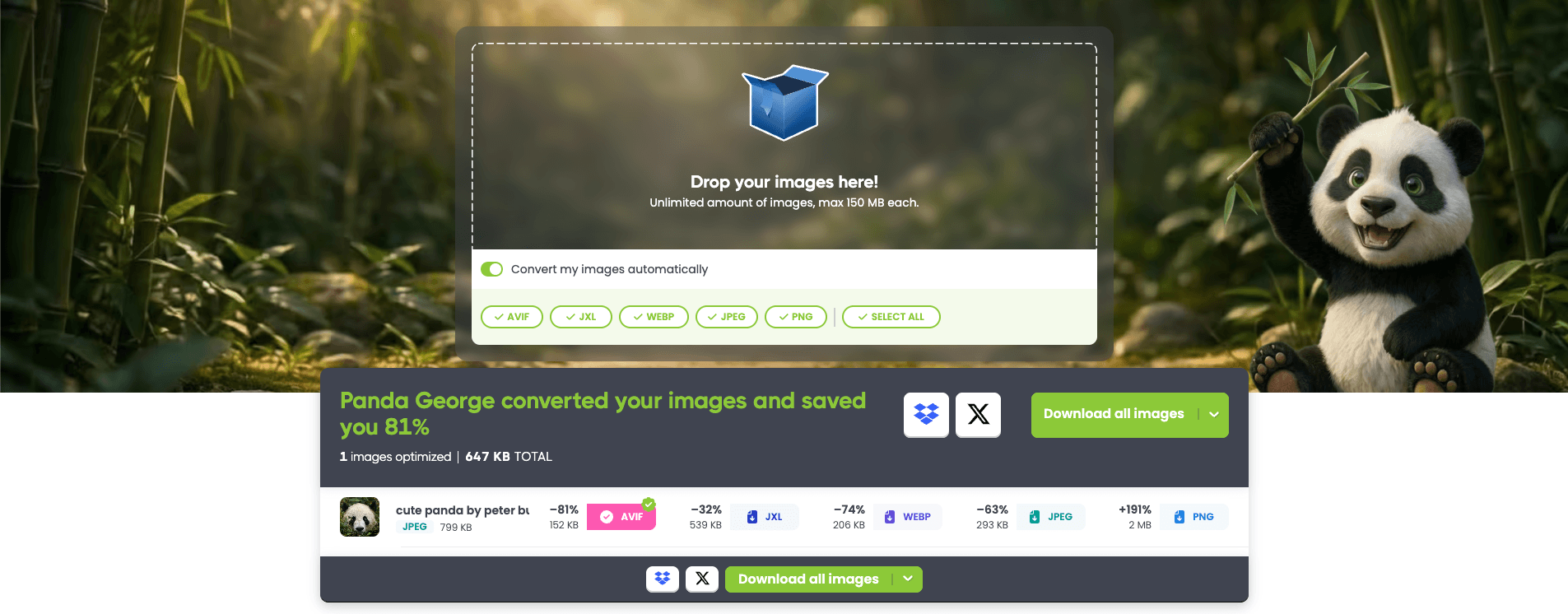
Panda George saves 81% on your image with Tinify’s smart lossy compression technique.

02. Choose the right compression method

Not all images should be treated the same.

  • Use lossy compression for photographs and complex visuals
  • Use lossless compression techniques only when every pixel must remain unchanged (e.g., logos or UI elements)

In most web use cases, a well-optimized lossy compression image will look identical to the original while being significantly smaller.

03. Convert to modern formats

Switching to modern formats is one of the most effective ways to reduce file size.

Formats like WebP, AVIF, and JPEG XL (JXL) use advanced lossy compression file types to deliver smaller images compared to traditional JPEG and PNG, without noticeable quality loss.

By converting a JPG to AVIF, Tinify’s smart lossy compression reduced the file size by 81%. Can you see the difference?

04. Resize images before compression

One of the most common mistakes is uploading images that are larger than needed.

Always:

  • Resize images to their display dimensions
  • Then apply compression

This reduces file size dramatically before compression even begins.

05. Automate your workflow

For high-volume websites, manual image optimization quickly becomes inefficient. 

With API integrations and plugins for WordPress and Figma, you can:

  • compress images automatically
  • convert formats on upload
  • maintain consistent performance 

Tools to compress images efficiently

The best approach combines automation and optimization:

  • A powerful image compression tool
  • Smart lossy compression methods
  • APIs for automation
  • CDN delivery for performance

Tinify brings all of this together. With George the Panda, you can:

  • Compress images
  • Convert formats
  • Automate optimization
  • Deliver fast images globally

Try compressing your images yourself

Reduce image file size in seconds without noticeable quality loss.

Start optimizing images

Final thoughts

Lossless compression vs lossy compression isn’t about picking one; it’s about using the right method for the right situation.

With the right image optimizer, modern formats, and optimized workflows, you can:

  • Reduce image file size
  • Maintain visual quality
  • Improve website speed and SEO 

Frequently Asked Questions (FAQs)

01. What is lossy compression?

Lossy compression is a method that reduces file size by permanently removing some image data. This approach is commonly used for photographs and formats like JPEG, WebP, AVIF, and JPEG XL (JXL), where smaller file sizes are prioritized while maintaining visual quality.

02. What is lossless compression of images?

Lossless compression of images reduces file size without removing any essential image data, preserving original visual quality. It may remove unnecessary metadata and optimize encoding, but the image itself remains unchanged. Common lossless compression examples include PNG files and certain optimized JPEG workflows.

03. What is the key difference: Lossless compression vs lossy compression?

Lossless compression preserves all essential image data and maintains original visual quality, while lossy compression removes some image data to achieve smaller file sizes. The choice depends on whether exact quality or maximum size reduction is more important.

04. Which file types use lossy compression?

Common lossy compression formats include JPEG, WebP, AVIF, and JPEG XL (JXL), all designed to reduce image file size with minimal visible quality loss. Tinify’s free image resizer supports all the above-mentioned file formats for compression and conversion. 

05. Can JPEG be lossless or lossy?

JPEG is typically a lossy compression format, but some workflows allow near-lossless or optimized compression depending on settings.

06. What is the best way to reduce image file size?

The best approach is to use an image file compressor and convert images to modern formats like WebP, AVIF, or JXL.

Compress PNG to WebP: Convert and Optimize Images for Faster Websites

PNG images are widely used on websites because they support transparency and high-quality visuals. However, PNG files can be much larger than necessary, which can slow down your website and impact performance.

One of the easiest ways to reduce image file size is to convert PNG images to WebP.

In this guide, you’ll learn how to convert PNG to WebP and why switching formats can significantly improve website performance.

How can I compress images from PNG to WebP? You can simply upload your PNG file to a WebP optimizer, which will automatically convert and compress the image. Then download the optimized file for use on your website – reducing file size while maintaining visual quality.

Why convert PNG to WebP?

If you’re using PNG images on your website, you’re often serving more data than necessary. Converting PNG to “next gen” formats like WebP often helps you deliver the same visuals with smaller file sizes.

WebP achieves this through more efficient compression, often reducing image size by 30% compared to PNG at similar quality levels.

This reduction has a direct impact on performance:

  • Faster page load times
  • Improved Core Web Vitals by using next-gen formats
  • Better mobile experience
  • Lower bandwidth usage
  • Stronger SEO performance

For websites with many images, switching from PNG to WebP is one of the simplest ways to improve speed without reworking your visuals.

That said, WebP is not always smaller than PNG. File size depends on the image itself. Simple graphics or already optimized PNGs can sometimes be just as small or smaller.

The advantage is that tools like Tinify automatically compare and optimize your images. You can convert to WebP and compress the PNG at the same time, and Tinify shows you which option gives the best result.

PNG vs WebP: What’s the difference?

PNG and WebP are both widely used image formats, but they serve different purposes.

Feature PNG WebP
Compression type Lossless only Lossy and lossless
File size Larger Smaller
Transparency Yes Yes
Image quality Perfect (no data loss) High (optimized for web)
Best use cases Logos, icons, UI elements Most image types
Browser support Universal All modern browsers

Since WebP supports both lossy and lossless compression, it can be used for a wide range of image types. It is designed for web performance, using efficient compression techniques to reduce file size while maintaining visual quality. If you want a deeper breakdown, see our guide on the pros and cons of WebP images.

That said, PNG is still preferred in some design workflows where exact visual precision is required. Because PNG preserves all image data, it’s ideal for design assets and graphics, but this also results in larger file sizes.

Common use cases for WebP

WebP is especially useful for:

  • E-commerce product images
  • Blog content and featured images
  • Landing pages and marketing visuals
  • Background images and hero banners

Reducing image weight in these areas improves both user experience and performance metrics.

How to compress PNG to WebP

You can compress and convert PNG images to WebP in just a few steps using a PNG to WebP converter like Tinify.

1. Upload your PNG images

Drag and drop your images into the image optimizer or select them from your device. No installation or account is required.

2. Automatically convert and compress

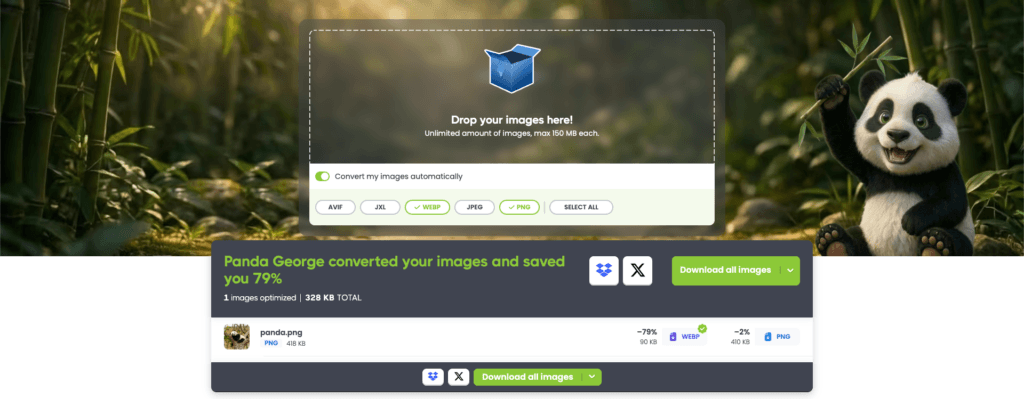
Our free image converter is designed for simplicity, automatically serving as both a PNG compressor and a WebP converter. It applies PNG compression and simultaneously converts your PNG to WebP. 

George the Panda saves you 79% by converting PNG to WebP.

3. Download optimized images

Download your compressed WebP images to your device or to your Dropbox. 

You can also batch convert multiple images at once, making it easy to optimize entire websites or image libraries.

Compress and convert your images in seconds

Reduce PNG file size and convert to WebP in just a few clicks. Save up to 80% without losing quality.

Compress Images Now

When should you use WebP instead of PNG?

If you’re deciding between PNG and WebP, the choice usually comes down to performance versus precision.

Choose WebP for:

  • Website images and content visuals
  • Product images
  • Blog posts
  • Backgrounds and banners

Stick with PNG when:

  • You need pixel-perfect editing
  • You work with design tools that require PNG

Frequently asked questions

01. Does converting PNG to WebP reduce quality?
Tinify’s smart image compression reduces file size while keeping images visually identical to the human eye.

Panda image png
Original PNG – 418kb
Compressed WebP – 90kb

02. Is WebP supported everywhere?
WebP is supported by all modern browsers, making it safe for most websites today.

03. Can I convert multiple PNG files at once?
Yes, Tinify’s image converter supports batch processing, allowing you to optimize multiple images quickly.

Start converting PNG images to WebP today

Optimizing your images is one of the fastest ways to improve website performance.

By converting PNG to WebP, you can reduce file sizes, improve loading speed, and create a better user experience. Want to go further? Automate optimization with an image optimization API or deliver images faster worldwide using an image CDN.

How Adobe Express and Tinify Support Effortless Website Updates

Updating a business website usually happens in pieces. A new page here. A refreshed banner there. Maybe a blog post that finally gets the visuals it deserves. Over time, those small updates shape how the site feels—but without a clear process, they can also introduce inconsistency and unnecessary friction.

That’s why Adobe Express and Tinify work well together during website updates. Adobe Express supports visual creation and consistency. Tinify supports a simple, repeatable preparation step before images go live. Together, they help website updates feel more intentional and easier to manage.

The Short Version

Create visuals with consistency in mind. Finalize them once. Prepare images before uploading. Publish without second-guessing. That rhythm is what keeps website updates from turning into ongoing cleanup.

How to Think About Website Updates Before You Open Any Tools

Most website refreshes feel frustrating because teams jump straight into execution. Pages are edited while visuals are still in flux. Images are uploaded before decisions are final. 

The result isn’t bad work. It’s unnecessary churn.

A more structured approach starts by deciding when each type of work happens. Visual creation should have a clear beginning and end. Publishing should come later, once decisions are locked. When those phases are separated, tools stop competing with each other and start supporting a cleaner flow.

This is less about speed and more about reducing backtracking.

Where Adobe Express Supports Website Updates

Adobe Express is typically used during the creative phase of website updates, when visuals are being created, adjusted, and finalized.

In practice, it’s used to support common update tasks like:

Keeping creative work in one place makes it easier to maintain a consistent look and feel across the site as updates roll out over time.

This creative layer is where visual decisions are made and assets are finalized. Once visuals are approved, the next step is preparing image files for optimal performance on live websites.

Where Tinify Naturally Comes Into The Workflow

Tinify fits in after visuals are complete. Once images are finalized and approved for use, Tinify provides a consistent way to prepare those files for the web before they’re uploaded to a website, blog, or CMS.

Tinify reduces image file size without affecting visual quality or design decisions. This helps pages load faster, improving the experience for visitors and supporting SEO over time, since page speed is one of the factors search engines consider.

How teams use Tinify depends on their setup:

  • Manual compression: Upload images directly to Tinify before adding them to a website.
  • WordPress plugin: Automatically compress images when they’re uploaded to the media library, so every image follows the same preparation step without manual checks. 

Used consistently, Tinify becomes a quiet part of the routine. It’s not a tool teams debate or revisit. It’s a dependable final step before publishing that helps updates feel finished rather than rushed.

Common Friction Points During Ongoing Updates

When websites are updated over months or years, a few issues tend to surface:

  • Visuals look good individually, but feel mismatched together.
  • Blog graphics don’t resemble the rest of the site.
  • Homepage elements are updated often but inconsistently.
  • Images are uploaded without being optimized for performance.

Individually, none of these issues breaks a website. But over time, they create unnecessary follow-up work and make updates feel more complicated than they need to be.

A Practical Workflow to Handle Website Updates

Rather than treating every change like a redesign, many businesses follow a repeatable rhythm:

  1. Create or revise visuals in Adobe Express so they match current branding and layout goals.
  2. Finalize assets once they’re approved for real use—not drafts.
  3. Prepare finalized images with Tinify before uploading them to the site.
  4. Publish updates with fewer revisions and fewer follow-ups.

This flow supports steady improvement without disruption.

Frequently Asked Questions (FAQs)

Is this workflow only for designers?
Not at all. It’s often used by marketing and content teams managing incremental updates like new pages, blog posts, or homepage changes.

Does Tinify change how images look?
No. Tinify reduces file size while preserving visual quality, so design and branding decisions stay exactly as intended.

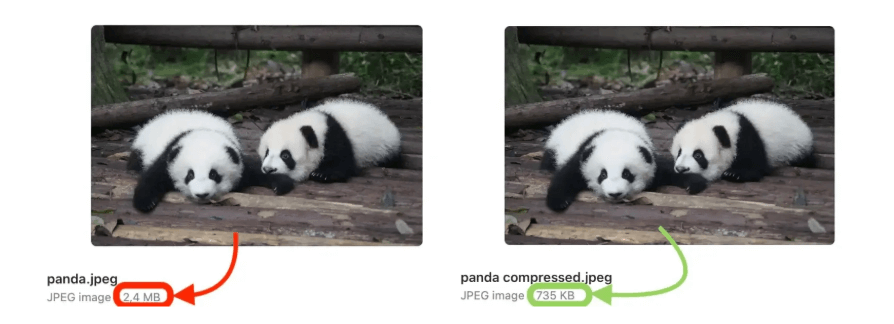
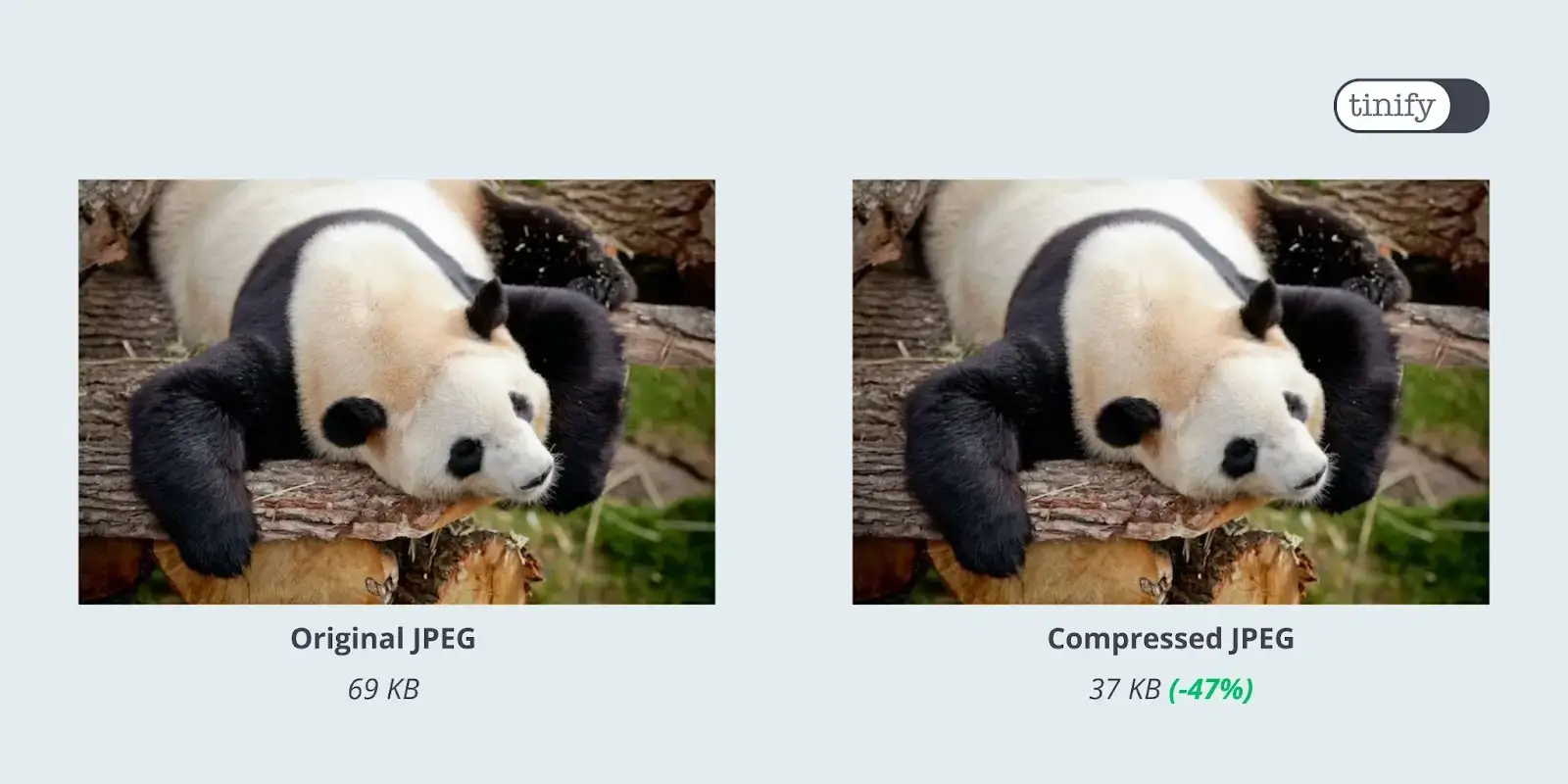
Panda image before and after Tinify image compression for website updates.
Photo by Pascal Müller on Unsplash

Will this help with long-term consistency?
Yes. Using the same creation and preparation steps for every update helps teams maintain both visual consistency and site performance over time.

Smarter website updates don’t come from doing more—they come from doing things in the right order. Adobe Express supports the creative work of keeping visuals consistent and current. Tinify supports the final preparation step that makes those visuals ready for the web. Used together, they help website updates feel calmer, cleaner, and easier to repeat over time.

Image compression plugin: Better images with TinyPNG’s WordPress Plugin

A fast-loading website is more important than ever. It leads to more conversions and a better user experience. Compressed images have a big influence on that. If you have a WordPress website and want to speed up loading times, the TinyPNG WordPress plugin might be helpful. But what exactly is this image compression plugin and how can you speed up your WordPress website by compressing your pictures?

Why compress images?

Optimizing the size of your images is crucial for ensuring a fast and efficient website. Large image files are one of the biggest reasons behind slow websites as many website owners overlook the size of their images when they upload them into their WordPress websites. While they may look good on the page, this isn’t enough to guarantee the best user experience.

At the same time, the size of your images impacts your SEO, as faster websites rank higher in search results, which results in more visitors and conversions. 

Some experts recommend that your images shouldn’t be more than 1MB, but Shopify advises users to keep image files under 70KB. 

Additionally, as a rule of thumb, your website shouldn’t take more than 3 seconds to load as 40% of users will immediately leave it.

Before you keep on reading, you can use Tinify’s Analyzer to discover how much time you can save on page loading by compressing your images.

Does WordPress automatically compress images?

You might be wondering, does WordPress automatically compress images? The answer is yes, but only to a certain extent. WordPress does compress pictures upon upload, but this default compression might not be sufficient for optimal performance and could make images blurry. To prevent this, an image compression plugin comes in handy.

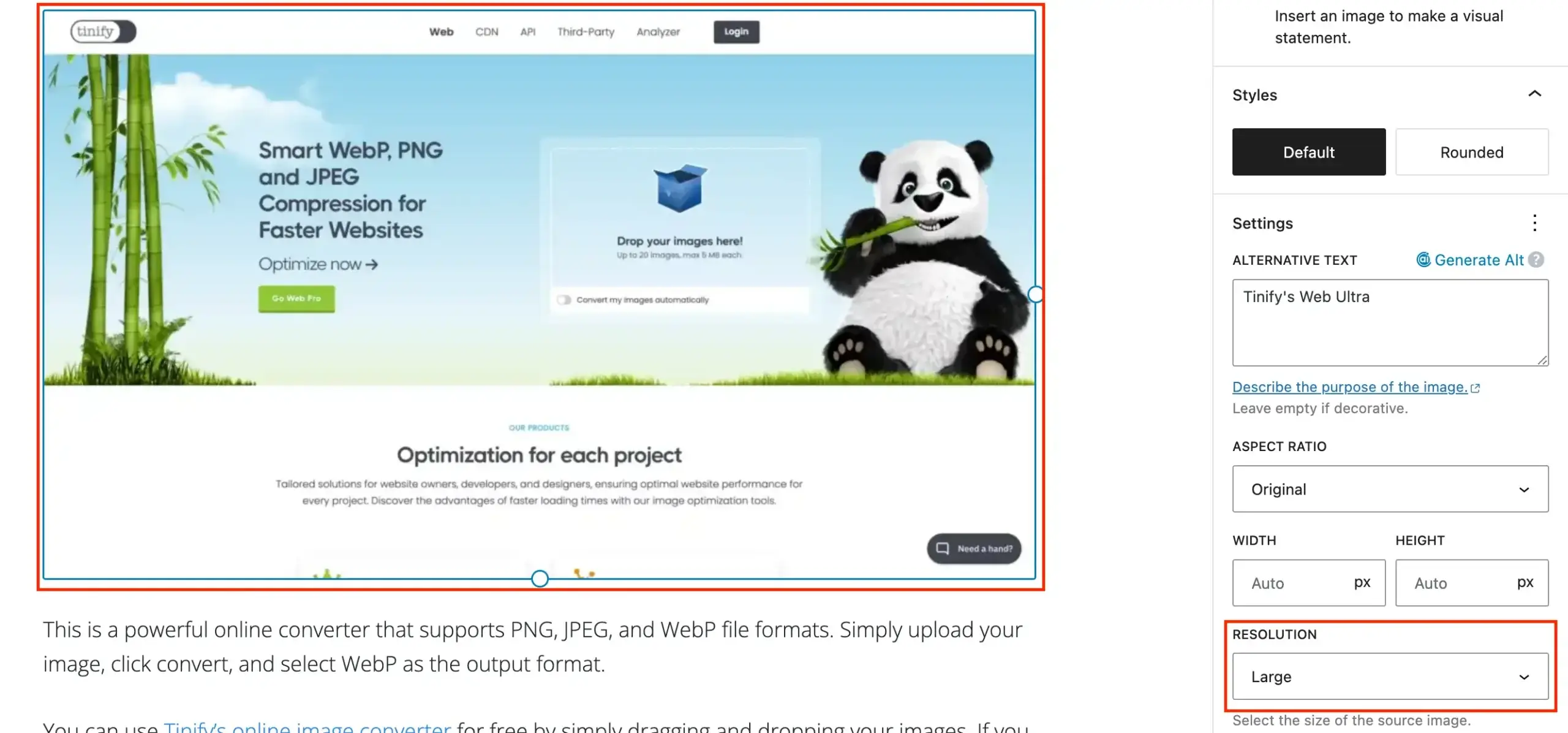
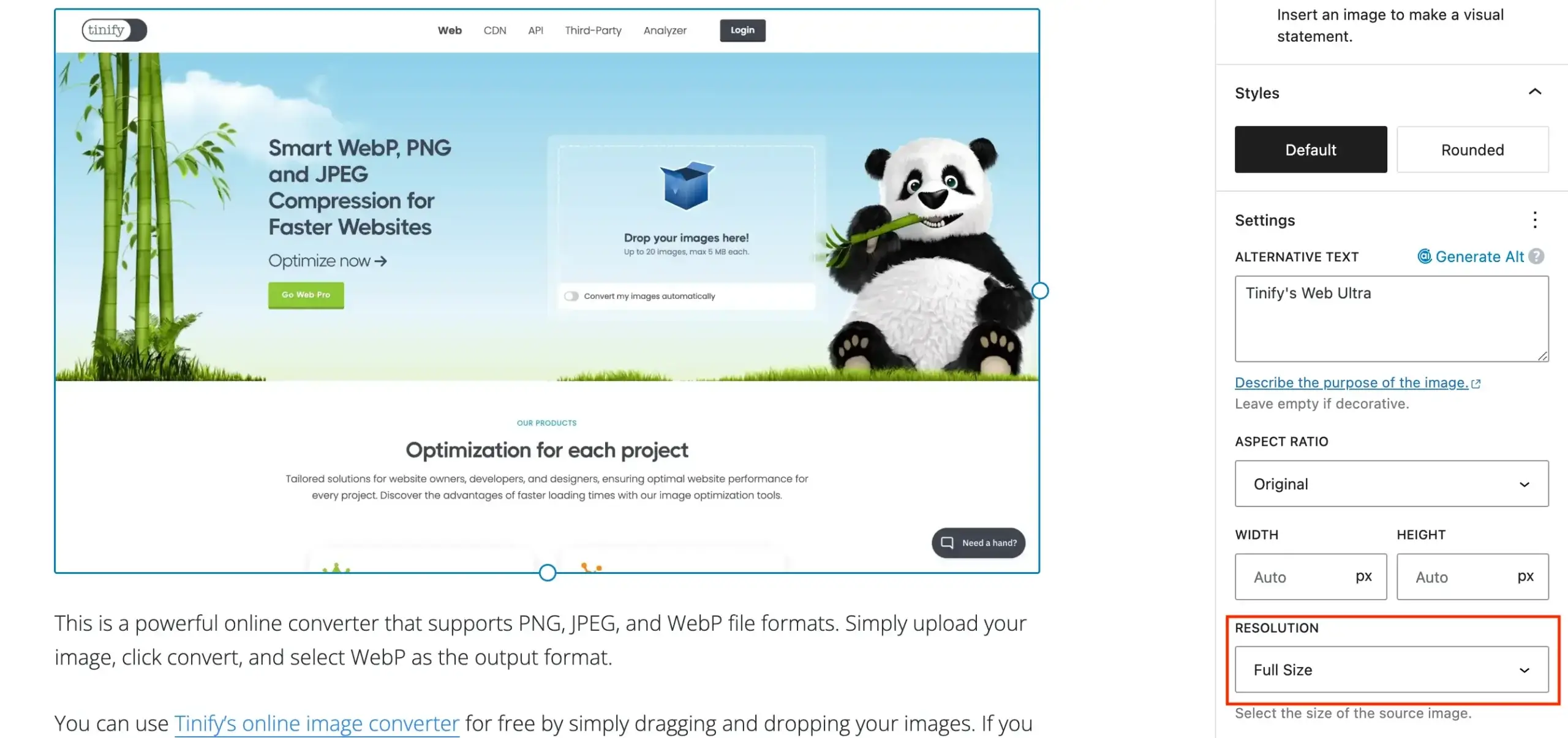
The image on the right illustrates how WordPress automatically reduces the size of your uploaded pictures by changing the resolution to “Large.” However, this makes the image look quite blurry. If you choose “Full size,” you will notice a clear difference. In this way, a better solution is to select “Full Size” and use a specific image compression plugin to maintain high quality.

Why use an image compression plugin for WordPress?

Having a lot of images on your website takes time to load. A simple way to decrease the loading time of your website is to compress images. An image compression plugin for WordPress can further reduce the file sizes of your images beyond the default compression WordPress provides. This ensures your website loads quickly, improving both SEO and user experience.

For websites made in WordPress, Tinify has an image compression plugin for WordPress that can help you optimize your JPEG, PNG, and WebP images. 

How does the TinyPNG WordPress plugin work?

Your website’s images are compressed through Tinify’s API service to reduce file sizes. The optimization process is tailored to each image, ensuring the best results. Once compressed, the smaller images are sent back to your WordPress site, replacing the originals. 

On average, JPEG images are compressed by 40-60% and PNG images by 50-80% with no visible quality loss. This leads to faster loading times and significant savings in storage space and bandwidth. Every day, roughly three million images are optimized by Tinify!

How to compress images in WordPress

The TinyPNG WordPress plugin allows you to reduce the size of images using the Bulk Optimization tool or by manually selecting them. 

Additionally, it offers 3 options for handling newly optimized images: optimize after upload, optimize during upload, or not compress at all. The last option is ideal for website development to avoid unnecessary compressions.

The image compression plugin allows you to compress 500 images each month for free. The exact total depends on the number of thumbnail sizes that are in use in your WordPress installation. That means that with a standard WordPress installation, you can optimize roughly 100 images each month for free. 

Features of TinyPNG’s image compression plugin for WordPress

  • Optimize images as you upload them
  • Improve single images in your media library
  • Quickly optimize all images in your library
  • Resize large images upon upload for better display
  • Speed up JPEG image loading with progressive encoding
  • Keep copyright info and other data in original images
  • Compress animated PNG files
  • Pick which image sizes to optimize

If you’re looking for a straightforward solution, the TinyPNG WordPress plugin is the way to go. According to our users, TinyPNG is easier to use than other plugins. “It does the job” is common feedback – that and “I love the panda!”. Moreover, users appreciate the convenience of avoiding subscriptions in case they surpass the free monthly limit of 500 compressions. Instead, they can easily pay for additional images for a minimal cost.

It may sound like TinyPNG only helps in reducing file size, but if you think about the Technical SEO side of the website, it helps to improve both page loading speed and PageSpeed Insights scores.”

How to install the TinyPNG WordPress plugin?

The image compression plugin is easy to install on your WordPress website. Instructions are listed on this page. Once installed, you can also switch to a paid account which removes limits and allows you to optimize as many images as you like. 

1. Install the plugin and create an account
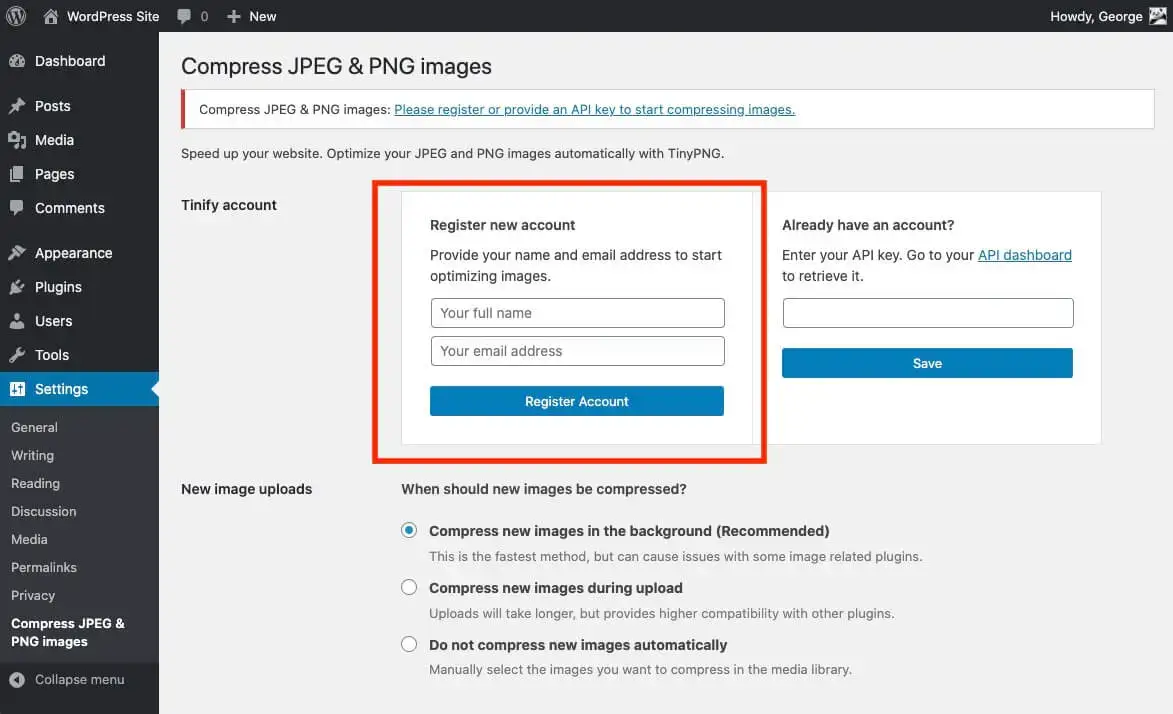
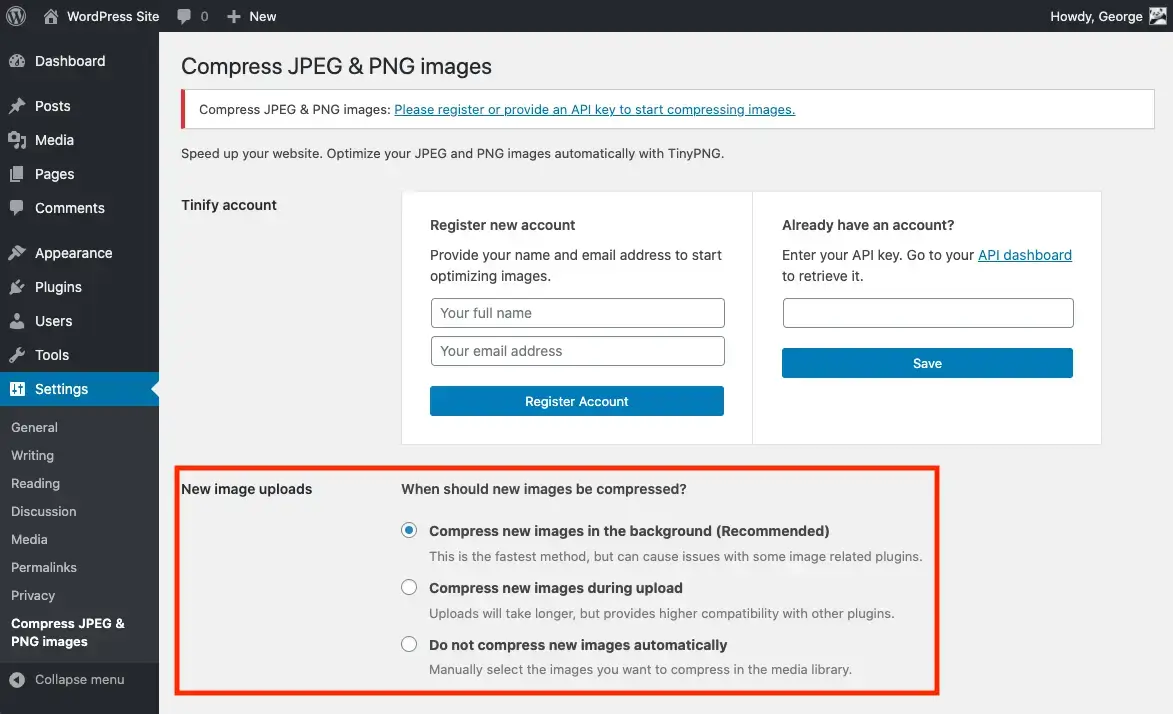
Begin by installing the TinyPNG plugin on your WordPress site. Once installed, go to Settings and click on “Compress JPEG & PNG images”. Follow the instructions to create an account. 

2. Select when newly uploaded images should be compressed
You have the option to decide how the plugin should handle newly uploaded images. There are three available options to choose from:

  • Option 1: Compress new images in the background (recommended)
    This is the fastest method for image compression and involves automatically compressing your images in the background. However, please note that this option can potentially cause issues with some image plugins.
  • Option 2: Compress new images during upload
    The second option is to compress new images during upload. This option takes a bit longer but provides higher compatibility with other plugins.
  • Option 3: Do not compress new images automatically
    Lastly, you can also choose not to compress new uploads automatically. In this case, you can manually select the images you want to compress in the Media Library. This is also the recommended option while doing development work on your website.

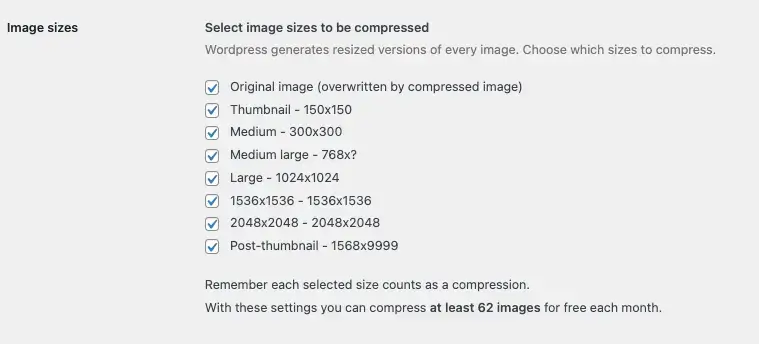
3. Select image sizes to be compressed
When you upload an image to your WordPress website, WordPress automatically generates different thumbnail versions of it, which can be seen in the Settings > Media section. 

The TinyPNG plugin will compress each of these different sizes of images, which means that if you have 100 images and 5 different sizes, the plugin will perform 500 compressions. To manage which image sizes get generated and compressed by the plugin, uncheck any image sizes that you don’t want to use or compress with the plugin. This allows you to customize the plugin according to your preferences and optimize only the images that are important for your website.

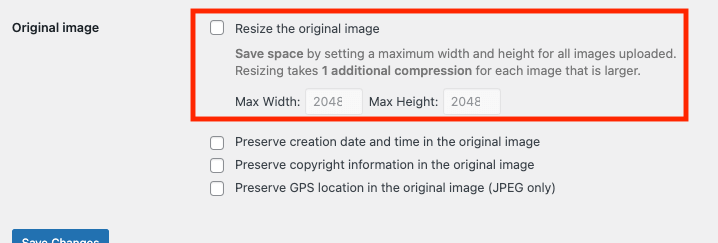
4. Resizing of original images
In addition to image compression, the plugin also provides the ability to resize your original images, which can save storage space. Resizing your images involves setting a maximum width and height for all images uploaded to your website. This process takes one additional compression for each image that is larger than the specified dimensions.

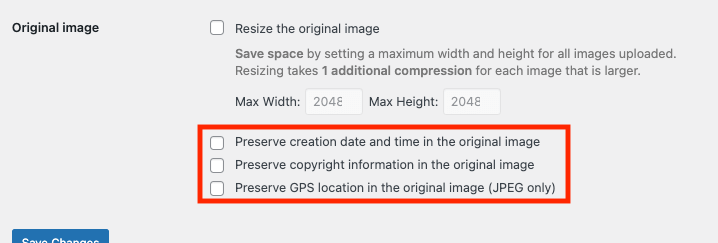
5. Preserving metadata
Lastly, the plugin also allows you to preserve certain metadata. If you do not select any metadata to preserve, all data will be removed during the compression process. However, if you want to preserve certain metadata, you can select the specific data that you wish to keep.

6. Save settings
After making changes to your plugin settings, it’s important to save your changes to ensure that they are applied to your website. To save your settings, simply click the “Save Changes” button at the bottom of the Settings page.

How to measure the impact of image optimization on blog performance

To understand the full impact of image optimization on your WordPress website, it’s essential to track various performance metrics. Here are some key metrics to focus on:

  1. Page load time: A critical metric that directly affects user experience and SEO.
  2. Bounce rate: The percentage of visitors who leave your site after viewing only one page.
  3. Average session duration: The average time a visitor spends on your site.
  4. Conversion Rates: The percentage of visitors who complete a desired action, such as signing up for a newsletter or making a purchase.

To measure these, you can record your current performance metrics using tools like Google Analytics, GTmetrix, and Pingdom. If you are using TinyPNG, the plugin provides a dashboard showing the total savings and compression statistics, helping you monitor the effectiveness of your optimization efforts.

Once you use an image compression plugin for WordPress like TinyPNG to reduce the file size of your images, you can track the same metrics to see the improvements. Compare page load times, bounce rates, session duration, and conversion rates before and after optimization.

Based on the data, make further adjustments. If certain pages are still slow, check for other factors like server speed or unoptimized code. Continuously monitor and refine your optimization strategy to maintain optimal performance.

Testimonial: LearnWorlds improved blog speed with Tinify

LearnWorlds, an online learning platform, had trouble with slow-loading blog pages due to high-resolution images. They tried free tools at first, but they didn’t work well. They used Tinify to automatically compress large images without losing quality, making their web pages load faster:

1. Improved performance: Image sizes were reduced to less than 1 MB, making the website faster and improving Google search rankings.
2. SEO benefits: Faster loading times helped with SEO, leading to better search engine rankings.
3. Easy workflow: Tinify made the optimization process smoother, saving time and fitting well into their workflow.
4. Cost-effective: Tinify was a cost-effective tool for compressing 500 to 1000 images per month.

“In many cases, we are getting very high-resolution images from our design department to upload to the blog. This would mean articles with >3 MB of images if we were to use those.”

Nick Malekos, SEO Manager at LearnWorlds

Conclusion: TinyPNG WordPress plugin in short

The TinyPNG WordPress plugin is a great tool for optimizing your website’s performance by compressing images. It improves page load times, user experience, and SEO without sacrificing quality. 

Whether you have a big website or a personal blog, this plugin is easy to use and seamlessly integrates with WordPress. It offers features like automatic compression, bulk optimization, and customizable settings for metadata and resizing. 

Start enjoying faster and more efficient image handling on your website by installing the TinyPNG plugin today. If you have any questions about the plugin or feedback, let us know at support@tinypng.com, or find us on Twitter or LinkedIn.

Use an image compressor API for better and faster website load time

An Developer API is a quick solution to compress a lot of images on your website in no time. Instead of manually uploading all your photos within an online compression tool, an API can do it all at once. It saves you a lot of time and besides, compressed images make your page speed way faster. It has a positive influence on how long users will stay on your webpage. But what is an API and how can you compress images with it?