
Lossy vs Lossless Compression Explained for Image Optimization


Images are essential for engaging websites, but large file sizes can significantly slow down performance. If you’re wondering how to reduce image file size without noticeable quality loss, understanding image compression is the key.
In this guide, we’ll break down lossy vs lossless compression and show you how to optimize images effectively.
What is image compression?
Image compression is the process of reducing file size while preserving as much visual quality as possible.
There are two main approaches:
- Lossy compression: reduces file size by permanently removing some image data
- Lossless compression: reduces file size by removing unnecessary metadata
Both methods are widely used in modern image optimization, depending on the use case.
Lossy vs lossless compression: What’s the difference?
Understanding lossless and lossy compression is key to choosing the right approach.
Lossy vs lossless compression: Quick comparison
| Lossless Compression | Lossy Compression | |
|---|---|---|
| Summary |
Image Quality File size |
Image Quality File size |
| Definition | No data is removed | Some metadata is permanently removed |
| Best Use Cases | Logos, icons, UI elements | Photos, backgrounds, large visuals |
| Compression Method | Data deduplication, encoding optimization | Data removal + perceptual optimization |
| Performance Impact | Improves speed slightly | Significantly improves page speed |
| Editability | Fully reversible | Not reversible |
| Typical Use on Websites | Graphics requiring precision | Most images for performance optimization |
Pros and cons of lossless and lossy compression
| Lossless Compression | Lossy Compression | |
|---|---|---|
| Pros |
– No loss of image quality – Fully reversible |
– Much smaller file sizes – Visually similar to original (at optimal levels) |
| Cons |
– Limited size reduction – Larger files than lossy |
– Not reversible – Quality loss at higher compression |
When should you use each?
Choosing between lossless compression of images and a lossy compression method depends on how important image quality is compared to file size.
- Use lossless compression when quality must remain exact. Lossless compression ensures every pixel is preserved, making it ideal when precision matters.
- Use lossy compression when reducing file size is more important than perfect fidelity. A well-optimized lossy-compressed image often appears identical to the original to the human eye, while significantly reducing file size and improving load times.
How to reduce image file size without noticeable quality loss
Here’s how to do it in practice:
01. Use a modern file compressor
A reliable image compressor quickly reduces image size while maintaining visual quality.
Modern tools use advanced lossy compression and optimizations to remove only data that isn’t noticeable to the human eye. Tools like Tinify automate this process efficiently.
02. Choose the right compression method
Not all images should be treated the same.
- Use lossy compression for photographs and complex visuals
- Use lossless compression techniques only when every pixel must remain unchanged (e.g., logos or UI elements)
In most web use cases, a well-optimized lossy compression image will look identical to the original while being significantly smaller.
03. Convert to modern formats
Switching to modern formats is one of the most effective ways to reduce file size.
Formats like WebP, AVIF, and JPEG XL (JXL) use advanced lossy compression file types to deliver smaller images compared to traditional JPEG and PNG, without noticeable quality loss.


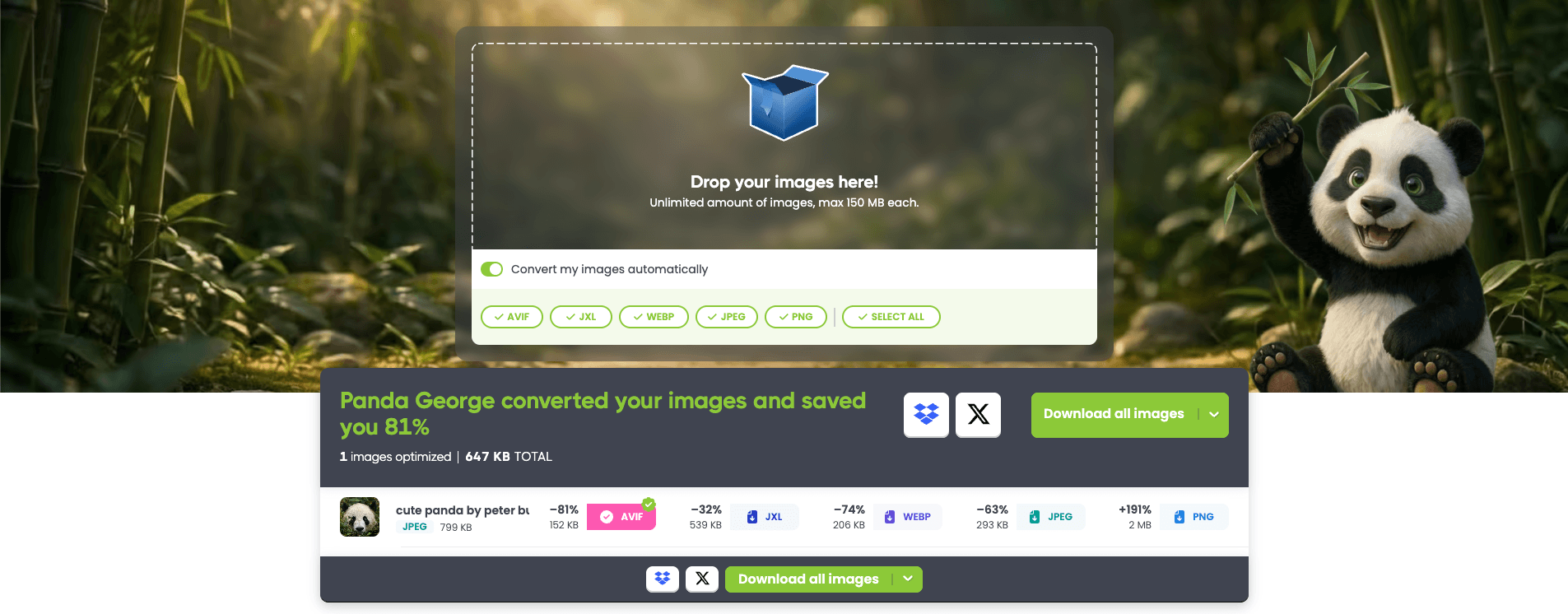
By converting a JPG to AVIF, Tinify’s smart lossy compression reduced the file size by 81%. Can you see the difference?
04. Resize images before compression
One of the most common mistakes is uploading images that are larger than needed.
Always:
- Resize images to their display dimensions
- Then apply compression
This reduces file size dramatically before compression even begins.
05. Automate your workflow
For high-volume websites, manual image optimization quickly becomes inefficient.
With API integrations and plugins for WordPress and Figma, you can:
- compress images automatically
- convert formats on upload
- maintain consistent performance
Tools to compress images efficiently
The best approach combines automation and optimization:
- A powerful image compression tool
- Smart lossy compression methods
- APIs for automation
- CDN delivery for performance
Tinify brings all of this together. With George the Panda, you can:
- Compress images
- Convert formats
- Automate optimization
- Deliver fast images globally
Try compressing your images yourself
Reduce image file size in seconds without noticeable quality loss.
Start optimizing imagesFinal thoughts
Lossless compression vs lossy compression isn’t about picking one; it’s about using the right method for the right situation.
With the right image optimizer, modern formats, and optimized workflows, you can:
- Reduce image file size
- Maintain visual quality
- Improve website speed and SEO
Frequently Asked Questions (FAQs)
01. What is lossy compression?
Lossy compression is a method that reduces file size by permanently removing some image data. This approach is commonly used for photographs and formats like JPEG, WebP, AVIF, and JPEG XL (JXL), where smaller file sizes are prioritized while maintaining visual quality.
02. What is lossless compression of images?
Lossless compression of images reduces file size without removing any essential image data, preserving original visual quality. It may remove unnecessary metadata and optimize encoding, but the image itself remains unchanged. Common lossless compression examples include PNG files and certain optimized JPEG workflows.
03. What is the key difference: Lossless compression vs lossy compression?
Lossless compression preserves all essential image data and maintains original visual quality, while lossy compression removes some image data to achieve smaller file sizes. The choice depends on whether exact quality or maximum size reduction is more important.
04. Which file types use lossy compression?
Common lossy compression formats include JPEG, WebP, AVIF, and JPEG XL (JXL), all designed to reduce image file size with minimal visible quality loss. Tinify’s free image resizer supports all the above-mentioned file formats for compression and conversion.
05. Can JPEG be lossless or lossy?
JPEG is typically a lossy compression format, but some workflows allow near-lossless or optimized compression depending on settings.
06. What is the best way to reduce image file size?
The best approach is to use an image file compressor and convert images to modern formats like WebP, AVIF, or JXL.